> ## Documentation Index
> Fetch the complete documentation index at: https://docs.foenix.ai/llms.txt
> Use this file to discover all available pages before exploring further.
# WP Easy Migrate
> Move your WordPress site between a Foenix sandbox and your own hosting in two clicks: create a backup on one site, import it on the other. URLs and the database are adapted automatically.
WP Easy Migrate is a one-click migration plugin built by Foenix. It packs your whole site - database, media, plugins, and themes - into a **single `.zip` file** that you can download and import on any other WordPress site with the plugin installed.
It's built for moving sites in any direction:
* **Sandbox → your own hosting**: built something in a Foenix sandbox and want it live? Move it to your real site.
* **Your hosting → sandbox**: clone your live site into a sandbox to let Foenix agents experiment safely.
* **Site → site**: works between any two WordPress sites, not just Foenix ones.
Foenix sandboxes run on **SQLite**, while most hosting uses **MySQL** or **MariaDB**. You don't have to think about this: the database is converted automatically during import (MySQL ↔ MariaDB ↔ SQLite). The plugin also **rewrites the site URL** and adapts the database to the new server for you.
## Before you start
Install and activate WP Easy Migrate on **both** sites - the one you're copying *from* and the one you're copying *to*. After activation, it appears in the WordPress admin sidebar as **WP Easy Migrate**.
Latest version - install via **Plugins → Add New → Upload Plugin**
Do not unzip the file - WordPress installs it directly from the archive.
At the top of the plugin screen you'll always see where you are: the current site URL, the database type (for example `SQLITE`), and the table prefix. Double-check this line before importing so you don't overwrite the wrong site.
## Step 1 - Create a backup (source site)
Open **WP Easy Migrate → 1. Create backup** on the site you want to copy.
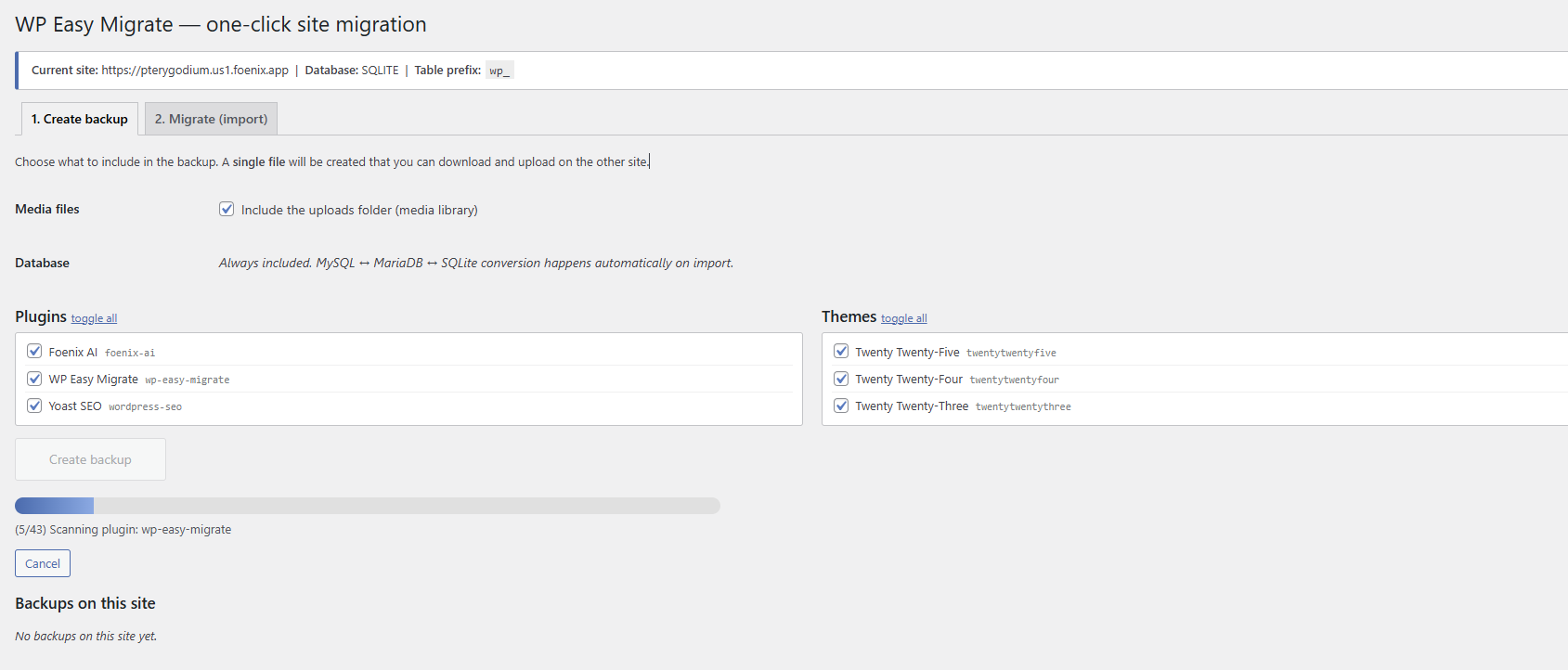
Choose what goes into the backup:
* **Media files** - check *Include the uploads folder (media library)* to bundle your images and uploads. Uncheck it if you only need content and settings (the backup will be much smaller).
* **Database** - always included. No configuration needed; conversion between database engines happens automatically on import.
* **Plugins** - tick the plugins you want to carry over, or use **toggle all**.
* **Themes** - same for themes.
Click **Create backup**. A progress bar shows what the plugin is doing (for example, *Scanning plugin: wp-easy-migrate*). You can safely hit **Cancel** at any point - creating a backup never changes your site.
 When it's done, you'll see a green **Done!** box with the file name and size:
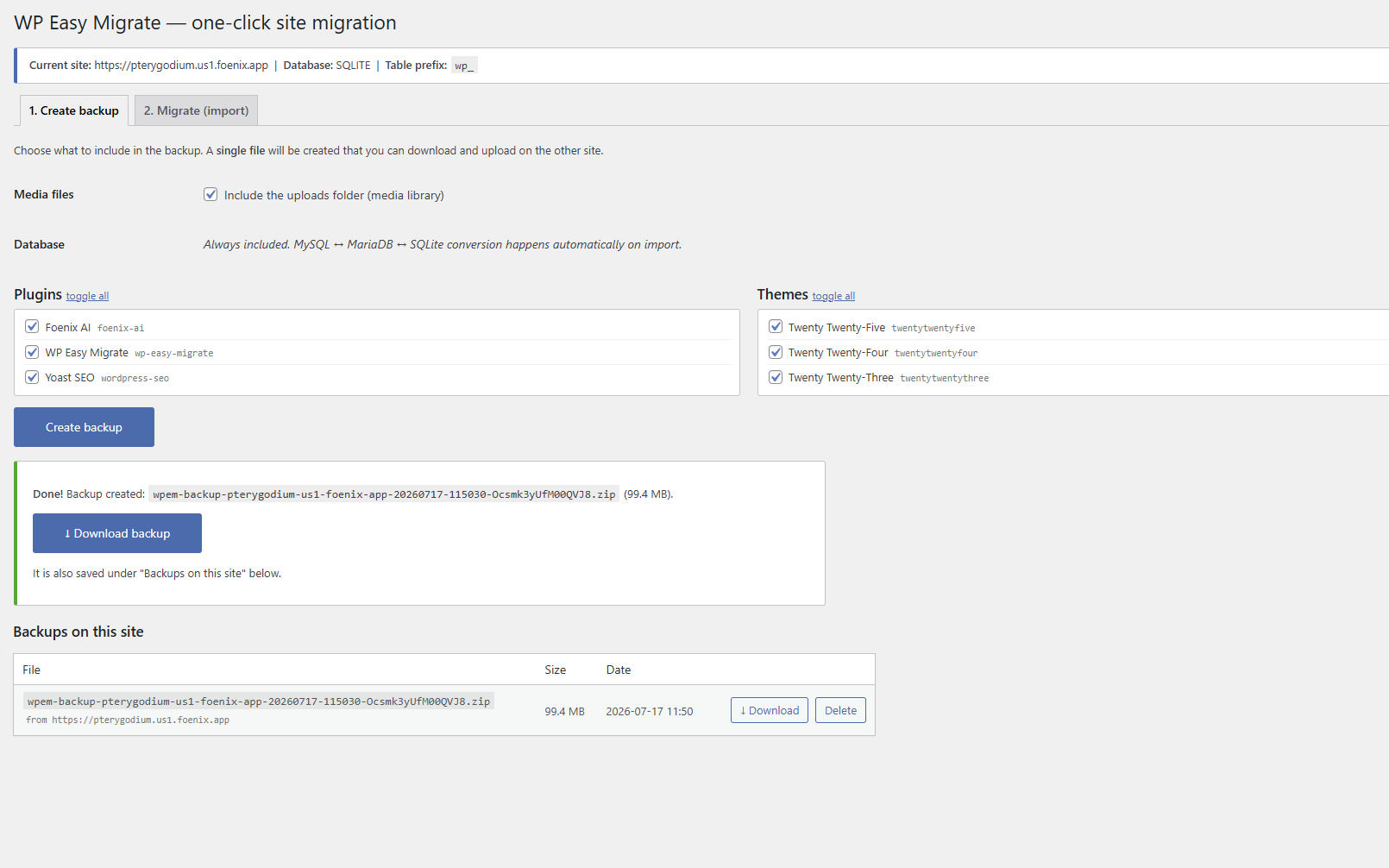 Click **↓ Download backup** to save the `.zip` to your computer.
Backup file names include the site and timestamp, like `wpem-backup-yoursite-20260717-115030-….zip`, so you can always tell which backup came from where.
## Step 2 - Import on the destination site
On the site you're moving *to*, open **WP Easy Migrate → 2. Migrate (import)**.
Under **Or upload a backup from another site**, choose the `.zip` you downloaded and click **Upload and analyze file**. A progress bar shows the upload speed and time remaining - you can **Cancel** at any point.
Uploading and analyzing a backup is **safe** - nothing on the site changes yet. The plugin only shows you what's inside. The database and selected files are replaced **only after** you review the backup and explicitly click **Import and migrate**.
### Review what will be migrated
Once the file is analyzed, the plugin shows a **What will be migrated** summary:
Click **↓ Download backup** to save the `.zip` to your computer.
Backup file names include the site and timestamp, like `wpem-backup-yoursite-20260717-115030-….zip`, so you can always tell which backup came from where.
## Step 2 - Import on the destination site
On the site you're moving *to*, open **WP Easy Migrate → 2. Migrate (import)**.
Under **Or upload a backup from another site**, choose the `.zip` you downloaded and click **Upload and analyze file**. A progress bar shows the upload speed and time remaining - you can **Cancel** at any point.
Uploading and analyzing a backup is **safe** - nothing on the site changes yet. The plugin only shows you what's inside. The database and selected files are replaced **only after** you review the backup and explicitly click **Import and migrate**.
### Review what will be migrated
Once the file is analyzed, the plugin shows a **What will be migrated** summary:
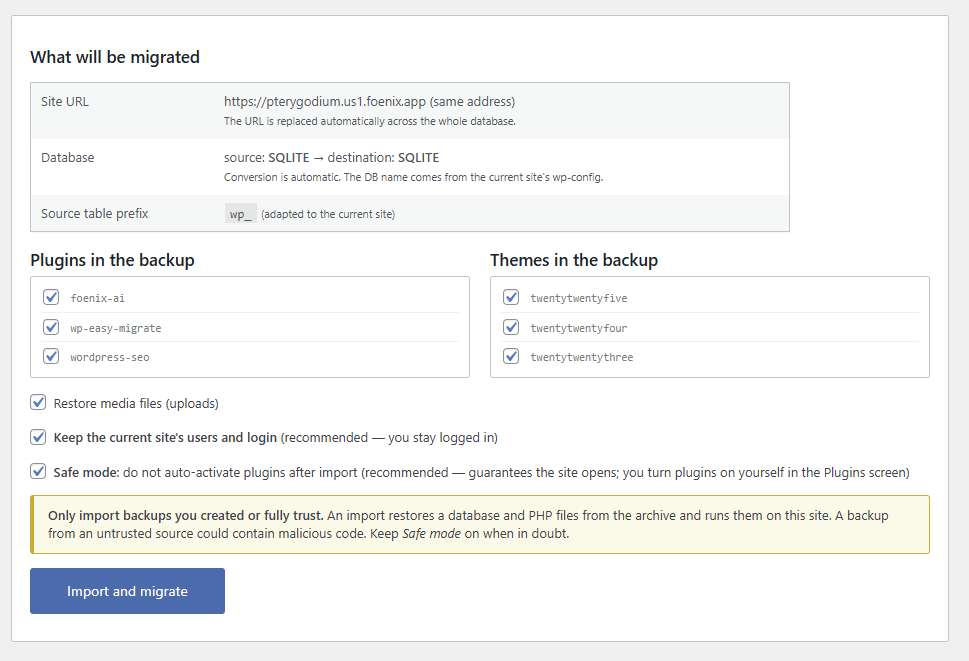 * **Site URL** - the backup's URL will be replaced with this site's address automatically, across the whole database.
* **Database** - source → destination engine (for example `MYSQL → SQLITE`). Conversion is automatic; the database name comes from the current site's `wp-config`.
* **Source table prefix** - adapted to the current site for you.
Then choose what to restore:
* **Plugins and themes in the backup** - untick anything you don't want on this site.
* **Restore media files (uploads)** - bring over the media library.
* **Keep the current site's users and login** - recommended: you stay logged in after the import instead of being logged out.
* **Safe mode: do not auto-activate plugins after import** - recommended: guarantees the site opens after migration. You turn plugins on yourself in the **Plugins** screen afterwards.
**Only import backups you created or fully trust.** An import restores a database and PHP files from the archive and runs them on this site. A backup from an untrusted source could contain malicious code. Keep *Safe mode* on when in doubt.
Click **Import and migrate**. When the import finishes, log in to the destination site and check that everything looks right. If you kept Safe mode on, go to **Plugins** and activate the ones you need.
Backups created on this same site appear under **Backups on this site** with a **Restore** button - you can roll the site back to an earlier state without uploading anything.
Importing **replaces** the destination site's database and the selected files. If the destination site has content you care about, create its own backup first - it takes one click on the *Create backup* tab.
## No upload or size limits to worry about
Big site? Not a problem:
* **Uploads are chunked.** Large backup files are uploaded in small pieces (around 10 MB per chunk, adjusted per server), so your host's `upload_max_filesize` limit doesn't apply.
* **Imports are resumable.** The import runs in small steps, so it won't die on servers with short PHP execution limits - and it does not touch the live site until the final, atomic switch.
## FAQ
Yes. Create the backup with WP Easy Migrate on the source site, and import it with WP Easy Migrate on the destination site. Backups made by other tools won't work here.
No - this is exactly what the plugin was built for. The database is converted automatically on import, in either direction. You don't need to export SQL dumps or configure anything.
Yes. Uploading and analyzing a backup changes nothing. The site is only modified after you click **Import and migrate**.
With Safe mode on, plugins from the backup are copied to the site but **not activated** automatically. This guarantees the site opens after migration even if one of the plugins would crash on the new server. You then activate them one by one in the **Plugins** screen.
Yes - uncheck *Include the uploads folder* to skip the media library, and untick plugins or themes you don't need on the destination. The database is always included.
Spin up a sandbox or connect your own WordPress in minutes
Why you should back up before big changes, and how Foenix handles safety
* **Site URL** - the backup's URL will be replaced with this site's address automatically, across the whole database.
* **Database** - source → destination engine (for example `MYSQL → SQLITE`). Conversion is automatic; the database name comes from the current site's `wp-config`.
* **Source table prefix** - adapted to the current site for you.
Then choose what to restore:
* **Plugins and themes in the backup** - untick anything you don't want on this site.
* **Restore media files (uploads)** - bring over the media library.
* **Keep the current site's users and login** - recommended: you stay logged in after the import instead of being logged out.
* **Safe mode: do not auto-activate plugins after import** - recommended: guarantees the site opens after migration. You turn plugins on yourself in the **Plugins** screen afterwards.
**Only import backups you created or fully trust.** An import restores a database and PHP files from the archive and runs them on this site. A backup from an untrusted source could contain malicious code. Keep *Safe mode* on when in doubt.
Click **Import and migrate**. When the import finishes, log in to the destination site and check that everything looks right. If you kept Safe mode on, go to **Plugins** and activate the ones you need.
Backups created on this same site appear under **Backups on this site** with a **Restore** button - you can roll the site back to an earlier state without uploading anything.
Importing **replaces** the destination site's database and the selected files. If the destination site has content you care about, create its own backup first - it takes one click on the *Create backup* tab.
## No upload or size limits to worry about
Big site? Not a problem:
* **Uploads are chunked.** Large backup files are uploaded in small pieces (around 10 MB per chunk, adjusted per server), so your host's `upload_max_filesize` limit doesn't apply.
* **Imports are resumable.** The import runs in small steps, so it won't die on servers with short PHP execution limits - and it does not touch the live site until the final, atomic switch.
## FAQ
Yes. Create the backup with WP Easy Migrate on the source site, and import it with WP Easy Migrate on the destination site. Backups made by other tools won't work here.
No - this is exactly what the plugin was built for. The database is converted automatically on import, in either direction. You don't need to export SQL dumps or configure anything.
Yes. Uploading and analyzing a backup changes nothing. The site is only modified after you click **Import and migrate**.
With Safe mode on, plugins from the backup are copied to the site but **not activated** automatically. This guarantees the site opens after migration even if one of the plugins would crash on the new server. You then activate them one by one in the **Plugins** screen.
Yes - uncheck *Include the uploads folder* to skip the media library, and untick plugins or themes you don't need on the destination. The database is always included.
Spin up a sandbox or connect your own WordPress in minutes
Why you should back up before big changes, and how Foenix handles safety