> ## Documentation Index
> Fetch the complete documentation index at: https://docs.foenix.ai/llms.txt
> Use this file to discover all available pages before exploring further.
# Quick Start
> Spin up a sandbox or connect your own WordPress, and run your first AI task in minutes.
Foenix lets AI agents work on a WordPress site in two ways: an **instant sandbox** we host for you, or your **own self-hosted site**. New accounts get a free 24-hour sandbox, so you can be running your first task in under a minute - no setup required.
## Step 1 - Create an account
Go to [foenix.ai/signup](https://foenix.ai/signup) and sign up. No credit card required - you get **500 free credits** and a **free 24-hour sandbox** to explore immediately.
Your trial sandbox is a fully-functional WordPress site deployed on our servers. It's the fastest way to get a feel for Foenix before connecting a real site. After 24 hours it's automatically removed.
## Step 2 - Choose where your agents work
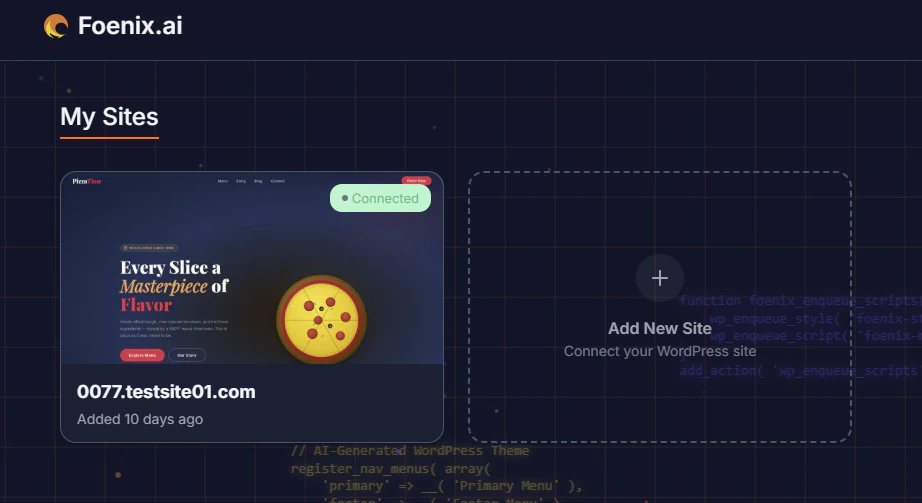
In your Foenix dashboard, click **Add New Site**. You'll be asked where your agents should work.
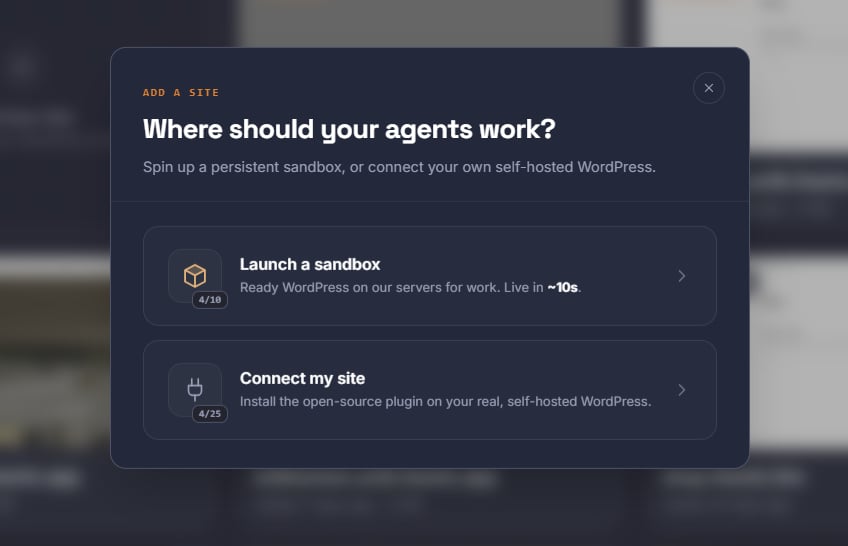 Pick the path that fits you:
A persistent, fully-managed WordPress instance on our servers - **live in \~10 seconds**. Best for testing, demos, and learning the system without touching a production site.
Just signed up? Your free 24-hour sandbox is already running - skip straight to **Step 3**. Deploy a persistent sandbox below only when you want one that lasts longer.
Click **Launch a sandbox**, then choose a storage size:
| Tier | Storage | Cost |
| ------------ | ------- | ---------------- |
| **Light** | 5 GB | 12 credits / day |
| **Standard** | 10 GB | 20 credits / day |
| **Heavy** | 25 GB | 30 credits / day |
Pick the path that fits you:
A persistent, fully-managed WordPress instance on our servers - **live in \~10 seconds**. Best for testing, demos, and learning the system without touching a production site.
Just signed up? Your free 24-hour sandbox is already running - skip straight to **Step 3**. Deploy a persistent sandbox below only when you want one that lasts longer.
Click **Launch a sandbox**, then choose a storage size:
| Tier | Storage | Cost |
| ------------ | ------- | ---------------- |
| **Light** | 5 GB | 12 credits / day |
| **Standard** | 10 GB | 20 credits / day |
| **Heavy** | 25 GB | 30 credits / day |
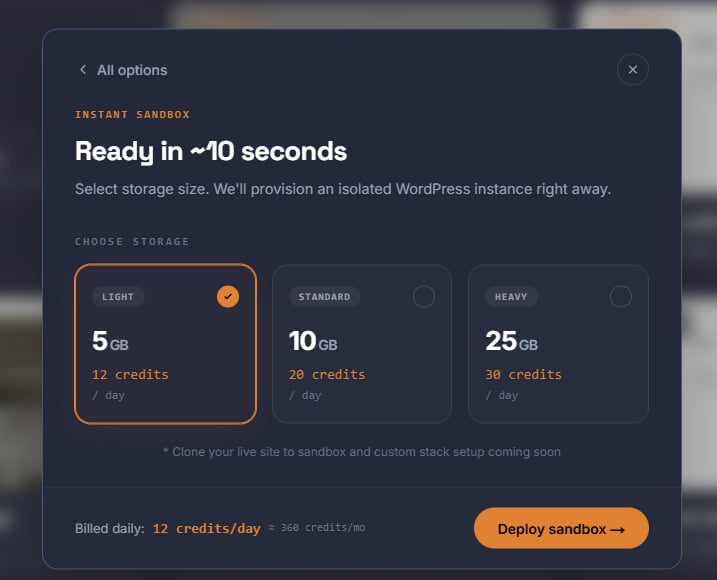 Sandboxes are **billed daily** for as long as they stay active. For example, a Light sandbox runs \~360 credits/mo. Click **Deploy sandbox** and your isolated WordPress instance is provisioned right away.
Cloning your live site into a sandbox and custom stack setups are coming soon.
Install the open-source Foenix Worker plugin on your real, self-hosted WordPress.
Sandboxes are **billed daily** for as long as they stay active. For example, a Light sandbox runs \~360 credits/mo. Click **Deploy sandbox** and your isolated WordPress instance is provisioned right away.
Cloning your live site into a sandbox and custom stack setups are coming soon.
Install the open-source Foenix Worker plugin on your real, self-hosted WordPress.
 Foenix makes changes via the WordPress REST API. To stay safe, connect a hosting **staging environment** (Kinsta, WP Engine) or install a **backup plugin** (e.g. UpdraftPlus) before running any agents. [Learn more →](/security/backups)
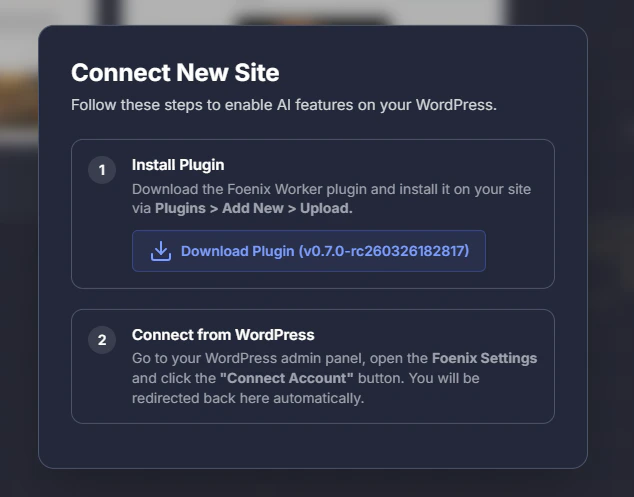
On the connection screen, click **Download Plugin**, or grab it directly:
Latest version - install via WordPress admin
Do not unzip the file - WordPress installs it directly from the archive.
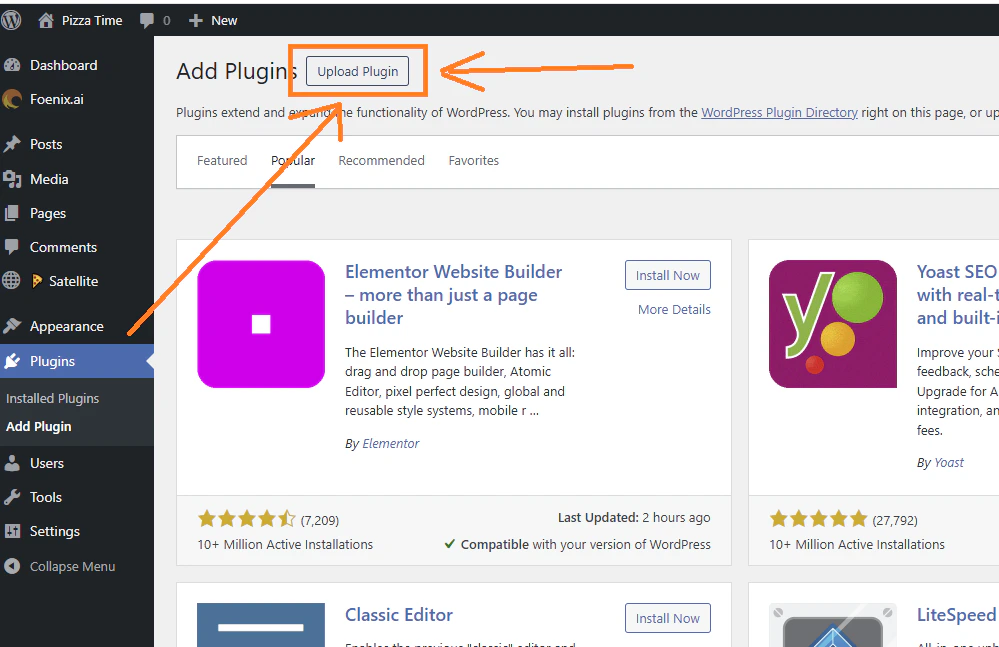
1. Go to **Plugins → Add New → Upload Plugin**
2. Choose the `.zip` file you just downloaded
3. Click **Install Now**, then **Activate**
Foenix makes changes via the WordPress REST API. To stay safe, connect a hosting **staging environment** (Kinsta, WP Engine) or install a **backup plugin** (e.g. UpdraftPlus) before running any agents. [Learn more →](/security/backups)
On the connection screen, click **Download Plugin**, or grab it directly:
Latest version - install via WordPress admin
Do not unzip the file - WordPress installs it directly from the archive.
1. Go to **Plugins → Add New → Upload Plugin**
2. Choose the `.zip` file you just downloaded
3. Click **Install Now**, then **Activate**
 In your WordPress admin sidebar, open **Foenix.ai** settings and click **Connect Account**.
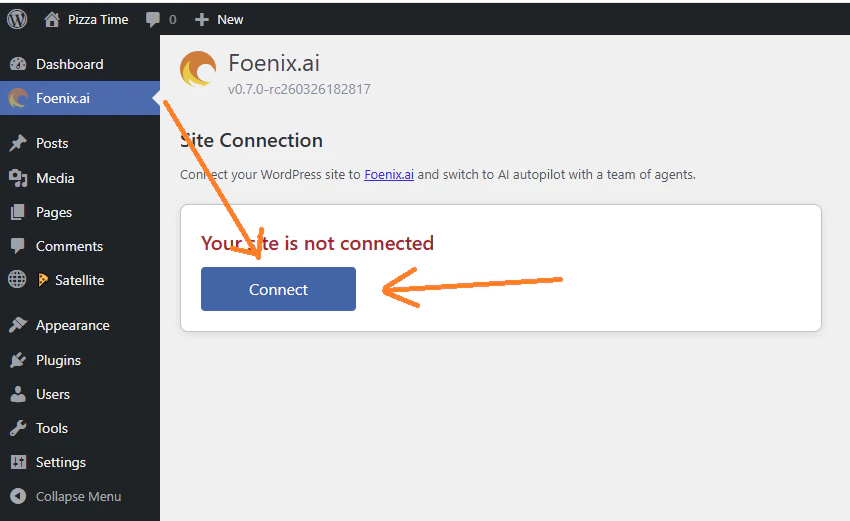 You'll be redirected back to Foenix automatically - your site will appear as **Connected** in the dashboard.
 ## Step 3 - Run your first task
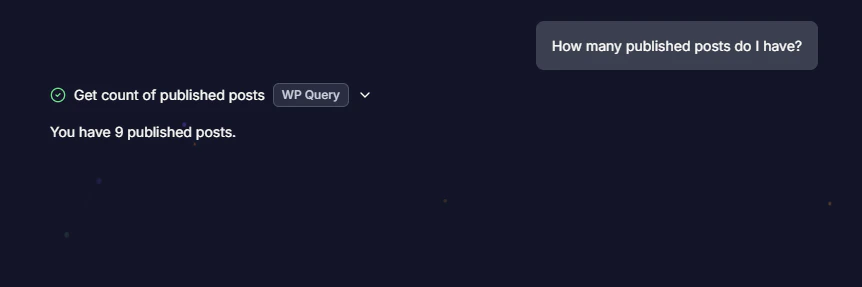
Click your sandbox or site in the Foenix dashboard to open a new session. Start with a question - questions are read-only and cost almost nothing:
```text theme={null}
How many published posts do I have?
```
Then give the agent a real job. Asking for a report first is a good habit: you see what Foenix found before anything changes.
```text theme={null}
Find broken links and missing meta descriptions across my posts.
Report only - don't change anything yet.
```
When the report looks right, reply with one more line and the agent does the work:
```text theme={null}
Fix everything from the report.
```
## Step 3 - Run your first task
Click your sandbox or site in the Foenix dashboard to open a new session. Start with a question - questions are read-only and cost almost nothing:
```text theme={null}
How many published posts do I have?
```
Then give the agent a real job. Asking for a report first is a good habit: you see what Foenix found before anything changes.
```text theme={null}
Find broken links and missing meta descriptions across my posts.
Report only - don't change anything yet.
```
When the report looks right, reply with one more line and the agent does the work:
```text theme={null}
Fix everything from the report.
```
 Working against a real site? Before making any edits or running agents, make a full backup, or rehearse the task in a sandbox first. [Learn more →](/security/backups)
## What's next
The four autonomy levels and what Foenix can touch on your site
Put a task on a schedule and let it run without you
What tasks cost and how Lite, Standard and Ultra modes change the price
Working against a real site? Before making any edits or running agents, make a full backup, or rehearse the task in a sandbox first. [Learn more →](/security/backups)
## What's next
The four autonomy levels and what Foenix can touch on your site
Put a task on a schedule and let it run without you
What tasks cost and how Lite, Standard and Ultra modes change the price